

I'm using rsync to backup a fileserver's harddrives.
I'd like to figure out the exact reason, considering one of the possibilities is data corruption and I need to rule that out.
Recently I noticed that while the primary partition and backup contain identical files, the disk usage is different.
using rsync -av --delete /mnt/md0/ /mnt/sde2/
rsync finds no changes and the partitions are in sync
df -h displays
Size ----- Used ---- Avail ---Use% -- Mounted On
466GB -- 459GB -- 6.9GB -- 99% -- /dev/md0 (two sata 250gb mdadm array)
466GB -- 461GB -- 4.8GB -- 99% -- /dev/sde2 (a 500gb partition on a 2TB external usb harddrive)
I'm trying to determine if this is something I just haven't noticed before or a possible issue, with potential data corruption.
-- more information if it helps --
Both partitions are formatted XFS, (if relevant, to the way mkfs.xfs created them)
the md0 was formatted two+ years ago from a debian 4.0 system,
the sde2 just a month or so ago from a debian 5.0 system.
the hard-drives physically are also two+ years apart in technology, etc.
also could being an mdadm vs a single drive partition effect anything?
I've look many many times for answers and found nothing more conclusive then:
*possible data corruption
*two identical sets of data using more blocks on one harddrive due to arrangement or harddrive/filesystem configuration/specs
---- my idea, I could be wrong.... but...
---- now that I think about it, disk usage actually is a different measurement than file-size, correct me if I'm wrong ----
---- Example: if one file system can fit 8 small pieces of data into a block and the other can only fit 6 small pieces into a block,...
---- AND if one file system can fit 1 large piece of data into a block, and the other can fit 1 large piece of data into a block...
---- The extra disk usage could come from differences in harddrive specs / XFS formatting and physical disk usage vs logical
*other idea was that the larger disk usage drive is adding a couple bits onto each file physically that the other isn't*
*different harddrive/filesystem features possibly being enabled on one vs the other.
(no idea how to determine if that is the case or what features)
*large disk usage drive needs defragmented, if fragmented files are physically causing unavailable space due to physical arrangement*
*resolution / depth / scaling
like a monitor running at 800x600, and another monitor running at 1600x1200 with an 800x600 picture scaled to fit.
## more simple, stores in bytes vs something stores in bits. A 10 bit file would take two bytes vs 10 bits (~1.25 bytes vs entire two bytes) ##
!!----- sorta thinking like if one harddrive had ------!!
50 blocks equal 50MB vs
25 blocks equal 50MB, example 27MB
50 blocks equal 50MB: 27MB would be 27 blocks would be 27MB of usage
25 blocks equal 50MB: 27MB would be 14(13.5) blocks would be 28MB of usage
----- blocks could be taking up more space for the same amount of data
----- ** In real life, since they use the same amount of blocks, if one drive's blocks have a higher resolution than file take less space than a lower resolution drive ----- again I could be completely around but the idea sounds logical enough
Correct me if any of my ideas are wrong, or please add details as to how to determine rule out some of the possible causes I found researching.
Again, like I said, I just noticed this and for the last two years I've had no noticeable differences with the drives I was using during that time.
Any ideas/help greatly appreciated, thanks.
rsync backup data has different filesize than original
Message
rsync backup data has different filesize than original
Last edited by awalp on Sun Sep 12, 2010 2:23 am, edited 1 time in total.
- MotivatedTea
- Apprentice

- Posts: 269
- Joined: Mon Nov 06, 2006 7:51 pm
- Location: Toronto, Canada

If you're really worried about data corruption, and you want to compare all of the files on both drives, you can use diff to compare all of the files:
(Note: Did you really mount a filesystem under /dev, as in your "df" output? Normally I would have expected to see both mounted under /mnt -- like /mnt/md0 or something like that. Check that, and adjust the command above accordingly. You want to give the "diff" command the two mounted paths.)
This command will do recursively search both directories (-r) and output the names of files that differ (-q). The command will take a long time to run, given so much data. When it's done, if you see no output, it means the contents of the files in both directories match (i.e., it will only print something if something is wrong). Note that this only compares the contents of files, not permissions and ownership, and I'm not sure how it will handle symlinks.
It's entirely possible that the two filesystems were formatted with different options. The two filesystems may use different block sizes, or may have reserved different amounts of space for metadata. You said you used XFS for both. What is the output of "xfs_info /dev/md0" and "xfs_info /dev/sde2"? (In this case you can give xfs_info either the mounted paths or the underlying block devices.) Even if they're the same (which, actually, is a unlikely since the drives are different sizes), the "older" probably has more fragmented files, which may therefore be consuming more blocks.
If the diff command above succeeds, you can have pretty good confidence that the contents of the drives check out. Another thing you could do is to calculate a hash (MD5 or SHA1, etc.) of all files on both drives and compare them.
Code: Select all
diff -r -q /dev/md0 /mnt/sde2This command will do recursively search both directories (-r) and output the names of files that differ (-q). The command will take a long time to run, given so much data. When it's done, if you see no output, it means the contents of the files in both directories match (i.e., it will only print something if something is wrong). Note that this only compares the contents of files, not permissions and ownership, and I'm not sure how it will handle symlinks.
It's entirely possible that the two filesystems were formatted with different options. The two filesystems may use different block sizes, or may have reserved different amounts of space for metadata. You said you used XFS for both. What is the output of "xfs_info /dev/md0" and "xfs_info /dev/sde2"? (In this case you can give xfs_info either the mounted paths or the underlying block devices.) Even if they're the same (which, actually, is a unlikely since the drives are different sizes), the "older" probably has more fragmented files, which may therefore be consuming more blocks.
If the diff command above succeeds, you can have pretty good confidence that the contents of the drives check out. Another thing you could do is to calculate a hash (MD5 or SHA1, etc.) of all files on both drives and compare them.
Lol, no that must be a typo, the devices in /dev are mounted as their same device name in /mnt(Note: Did you really mount a filesystem under /dev, as in your "df" output?
Is this any different than what rsync -avn --delete /mnt/a/ /mnt/b/ does? rsync compares the directories based on what files are in them, then the files themselves; time-stamp and size... for changes. If the time-stamp, size, or new/deleted file has changed is deletes or copies the new files.This command will do recursively search both directories (-r) and output the names of files that differ (-q). The command will take a long time to run, given so much data. When it's done, if you see no output, it means the contents of the files in both directories match (i.e., it will only print something if something is wrong). Note that this only compares the contents of files, not permissions and ownership, and I'm not sure how it will handle symlinks.Code: Select all
diff -r -q /dev/md0 /mnt/sde2
Is running diff going to be any more in-depth than that?
rsync -av --delete-before --checksum /mnt/a/ /mnt/b/If the diff command above succeeds, you can have pretty good confidence that the contents of the drives check out. Another thing you could do is to calculate a hash (MD5 or SHA1, etc.) of all files on both drives and compare them.
rsync --checksum calculates a checksum on every file on the source and destination drive to compare them for changes. I'm assuming this is the same thing as what you are suggesting. The only downfall of this is calculating a checksum on each file takes a lot of time (CPU usage and disk usage) vs checking the time-stamp and file size.
I have yet to run a full --checksum check on the sync. With short of 500GB of data it could take 12-24 hours to complete based on how long is has already taken.
....
After I run an rsync --checksum, that will mean I've done a 'diff' type check, and an md5 like (or md5? not sure what rsync uses) checksum on the files. At this point if the sizes are still different and none are changed where do I go from there?
Could the ordering of the files be taking up free space? I'm using XFS is there anything I can do to free up free space with XFS.
Also I have already run xfs_check, and xfs_repair -n, on both partitions with no errors.
I really need to figure out why the file sizes are different in case it is because of corruption.
----
As far as running xfs_info and checking for differences in the file systems.
Results: xfs_info, the only differences between the partitions are.
md0: agsize=7631120 blks, sunit=16, swidth=32 blks, extsz=13072
sde2: agsize=7629560 blks, sunit=0, swidth=0 blks, extsz=65536
other than that they match. I think the minor difference in agsize is because of a minor difference in total partition size / total blocks.
Currently, /mnt/md0/ is using 459G of 466G, and an identical /mnt/sde2/ is using 461G of 466G.
----
My only other idea and question is could differences between the drives bad sectors / bad areas of the drive, causing a loss of available space difference without changing the total partition size?
---
Also then if I were to delete everything is it possible that bad sectors being mapped out of use would cause ~1.5-2GB being used on one drive and not the other?
And if that is the case is that a reasonable amount for a 500GB partition on a 2TB drive?
(the drive makes clicking noise occasionally which I hope is normal, back in the day hard drives made noise)
----
Summary:
anything in the xfs_info results that could cause the difference?
and could the drive be mapping out bad sectors as used (unavailable) space?
I'm going to run a full rsync --checksum and see if anything changes.
more info... I'm not sure what this means...
command df -i
filesystem - INodes IUsed IFree IUse Mounted on
/dev/md0 -- 28M --- 98K - 28M - 1% - /mnt/md0
/dev/sde2 -- 20M --- 98K - 19M - 1% - /mnt/sde2
not sure if that has anything to do with this... also just FYI
command df -H --si
filesystem - Size --- Used --- Avail - Use% - Mounted on
/dev/md0 - 500GB - 493G --- 7.5G -- 99% - /mnt/md0
/dev/sde2 - 500GB - 495G --- 5.1G -- 99% - /mnt/sde2
With df in human readable and 1024/1000 switched to what most users see mode... THE PROBLEM..
-- There is a disk usage difference of approximately ~2GB of usage (~2-2.4GB). There should be no usage difference.
The two partitions hold identical rsync, synchronized files. Both XFS formatted 500GB partitions. DF display of the problem.
(the total filesystem size 500G drive 1 vs 500G drive 2 cannot be that far off, considering there is a minor difference in total block count)
command df -i
filesystem - INodes IUsed IFree IUse Mounted on
/dev/md0 -- 28M --- 98K - 28M - 1% - /mnt/md0
/dev/sde2 -- 20M --- 98K - 19M - 1% - /mnt/sde2
not sure if that has anything to do with this... also just FYI
command df -H --si
filesystem - Size --- Used --- Avail - Use% - Mounted on
/dev/md0 - 500GB - 493G --- 7.5G -- 99% - /mnt/md0
/dev/sde2 - 500GB - 495G --- 5.1G -- 99% - /mnt/sde2
With df in human readable and 1024/1000 switched to what most users see mode... THE PROBLEM..
-- There is a disk usage difference of approximately ~2GB of usage (~2-2.4GB). There should be no usage difference.
The two partitions hold identical rsync, synchronized files. Both XFS formatted 500GB partitions. DF display of the problem.
(the total filesystem size 500G drive 1 vs 500G drive 2 cannot be that far off, considering there is a minor difference in total block count)
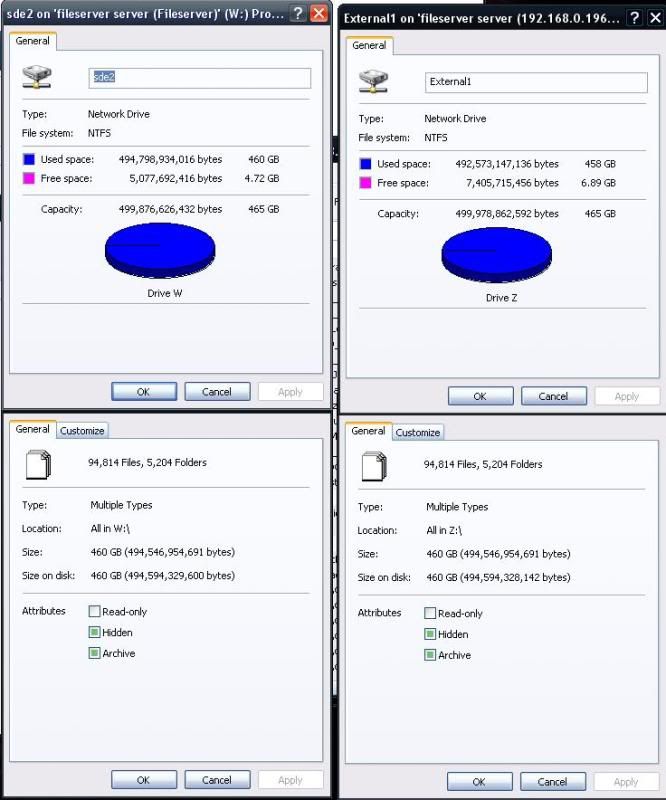
Image of Different Disk Size/Usage, Same File Size/Usage First Column /mnt/sde2, second Colume /mnt/md0
I mapped the drive with the extra disk usage to a samba share and opened from windows, summary of the image above...
From Windows, The Properties of the entire mounted disk show the usage difference
When I select all the files, the Properties of all the files does not have a usage difference
From Windows selecting all the files yields the exact same amount of files, size.... but the 'size on disk' is slightly different. (in case that means anything). But the 'size on disk' is really close and doesn't account for the additional usage of 2GB, which actually turns out to be 2GB less used space on the md0 partition.
Summary of Image
Drive_W:(/mnt/sde2)
Used Space: 494,798,934,016 bytes 460 GB [different]
Free Space: --- 5,077,692,416 bytes 4.72 GB
All in W:\
94,814 Files, 5,204 Folders
Size: - - - - - 460GB (494,546,954,691 bytes) [same]
Size on disk: 460GB (494,594,329,600 bytes)
Drive Z:(/mnt/md0)
Used Space: 492,573,147,136 bytes 458 GB [different]
Free Space: -- 7,405,715,456 bytes 6.89 GB
All in Z:\
94,814 Files, 5,204 Folders
Size: - - - - - 460GB (494,546,954,691 bytes) [same]
Size on disk: 460GB (494,549,328,142 bytes) [also slightly different]
-------------
Summary: I can't figure out why this is the way it is. I turns out the problem isn't the backup image is taking up extra space.
The problem is the disk usage of one copy of the files is 2GB less (458GB) than the actual file size (460GB) of the files on the disk. How can 460GB of files only take 458GB of space?
How can the files match perfectly when measured, but the actual disk usage is 2GB less than the files on the disk?
-- does it have anything to do with it being a software 500GB(250GB+250GB) linux raid0 partition
-- either way both filesystems are XFS, the 500GB raid0 array, and the 500GB partition of a 2TB HD
-------
Any help greatly appreciated
I mapped the drive with the extra disk usage to a samba share and opened from windows, summary of the image above...
From Windows, The Properties of the entire mounted disk show the usage difference
When I select all the files, the Properties of all the files does not have a usage difference
From Windows selecting all the files yields the exact same amount of files, size.... but the 'size on disk' is slightly different. (in case that means anything). But the 'size on disk' is really close and doesn't account for the additional usage of 2GB, which actually turns out to be 2GB less used space on the md0 partition.
Summary of Image
Drive_W:(/mnt/sde2)
Used Space: 494,798,934,016 bytes 460 GB [different]
Free Space: --- 5,077,692,416 bytes 4.72 GB
All in W:\
94,814 Files, 5,204 Folders
Size: - - - - - 460GB (494,546,954,691 bytes) [same]
Size on disk: 460GB (494,594,329,600 bytes)
Drive Z:(/mnt/md0)
Used Space: 492,573,147,136 bytes 458 GB [different]
Free Space: -- 7,405,715,456 bytes 6.89 GB
All in Z:\
94,814 Files, 5,204 Folders
Size: - - - - - 460GB (494,546,954,691 bytes) [same]
Size on disk: 460GB (494,549,328,142 bytes) [also slightly different]
-------------
Summary: I can't figure out why this is the way it is. I turns out the problem isn't the backup image is taking up extra space.
The problem is the disk usage of one copy of the files is 2GB less (458GB) than the actual file size (460GB) of the files on the disk. How can 460GB of files only take 458GB of space?
How can the files match perfectly when measured, but the actual disk usage is 2GB less than the files on the disk?
-- does it have anything to do with it being a software 500GB(250GB+250GB) linux raid0 partition
-- either way both filesystems are XFS, the 500GB raid0 array, and the 500GB partition of a 2TB HD
-------
Any help greatly appreciated


i don't know for xfs, but you can have different inode size for ext2-4
and that will create a difference of space use.
as a poor example:
file1: 4k
file2: 6k
with a 6k inode: it will take 12k space to hold them : 2x6k
with a 4k inode: it will take 12k space to hold them : 3x4k (with a lost 2k)
with a 4k inode: it will take 4k for the 4k one : 1x4k
with a 6k inode: it will take 6k for the 4k one: 1x6k (with 2k lost)
with a 4k inode: it will take 8k for the 4k file: 2x4k (with 2k lost)
with a 6k inode: it will take 6k for the 6k file: 1x6k
it will then depend how you count:
adding file size will do : 6+4= 10k and space left on device will be totalspace - 10k
or really checking how much space is left will be totalspace-(space taken), for the example #2 -> totalspace - 12k
this is also why people might get out of space even they have space on the drive, if your inode are too big, you will have fewer inodes, and you might run out of inode.
Seeing on drive you have (totalspace-spacetaken) left, where you have 0 inode to record more file = 0 size while seeing size > 0
again as in the example: if you have only 2 inodes left, copying 2 files of 4k over a 6k inode = 4+4k = 2k+2k (4k) left on drive, but you have in fact 0 inodes remaining = really 0 left but some program might output 4k left.
file remain still the same, but on different partition with different inodes, you'll get different size
and that will create a difference of space use.
as a poor example:
file1: 4k
file2: 6k
with a 6k inode: it will take 12k space to hold them : 2x6k
with a 4k inode: it will take 12k space to hold them : 3x4k (with a lost 2k)
with a 4k inode: it will take 4k for the 4k one : 1x4k
with a 6k inode: it will take 6k for the 4k one: 1x6k (with 2k lost)
with a 4k inode: it will take 8k for the 4k file: 2x4k (with 2k lost)
with a 6k inode: it will take 6k for the 6k file: 1x6k
it will then depend how you count:
adding file size will do : 6+4= 10k and space left on device will be totalspace - 10k
or really checking how much space is left will be totalspace-(space taken), for the example #2 -> totalspace - 12k
this is also why people might get out of space even they have space on the drive, if your inode are too big, you will have fewer inodes, and you might run out of inode.
Seeing on drive you have (totalspace-spacetaken) left, where you have 0 inode to record more file = 0 size while seeing size > 0
again as in the example: if you have only 2 inodes left, copying 2 files of 4k over a 6k inode = 4+4k = 2k+2k (4k) left on drive, but you have in fact 0 inodes remaining = really 0 left but some program might output 4k left.
file remain still the same, but on different partition with different inodes, you'll get different size
thanks for the help... I think some of your examples might have been written quickly and don't make 100% sense but this is exactly the same idea I was proposing on the first thread.
What I don't know and knowing could help.
1) Are inode size physical (hardware) or software (filesystem)?
2a) if they're based on hardware how would I check for differences in inode sizes to rule out corruption issues?
2ai) if they're hardware(firmware/software) based, most modern harddrive have the ability to modify certain harddrive parameters and defaults?
--2ai) for example one of the drives I'm working with goes to sleep after a couple hours and that can be disabled via a driver change or with special software in the onboard harddrive firmware/software config file?
2b) if they're based on the filesystem/software, how would I check for differences in inode sizes to rule out corruption issues?
2bi) if they're software based, how can a get the filesystems to have the same inode sizes (obviously using the size which is currently taking the least space). I'm guessing that would be an option upon formatting.
3) If they're a combination of the two, such as xfs following the harddrive firmware (software/config) defaults and it is a logical/software thing what can be done to at least verify that's the situation and no-corruption, and hopefully modify the drives to match?
------
At this point I've run checksum tests on all the files and they're GOOD files. tests on the harddrives. one harddrive does make clicking noises but that only happens when I wake it up from sleep (which needs disable via a driver or internal firmware/config change)
So I've reached the preliminary conclusion of differences in logical vs physical usage (such as inodes) taking up free space or bad sectors taking up free space, and am double checking all the harddrives with vendor diagnostic tools. (one of which will allow me to disable the sleep mode on one of the drives, so it does allow for some firmware/config changes that are a new design ability to me.
-----
This is honestly the absolutely first issue in my 10 years of experience with linux that I couldn't figure out myself; or at least the absolute first time I've ever asked for input/feedback on a situation.
What I don't know and knowing could help.
1) Are inode size physical (hardware) or software (filesystem)?
2a) if they're based on hardware how would I check for differences in inode sizes to rule out corruption issues?
2ai) if they're hardware(firmware/software) based, most modern harddrive have the ability to modify certain harddrive parameters and defaults?
--2ai) for example one of the drives I'm working with goes to sleep after a couple hours and that can be disabled via a driver change or with special software in the onboard harddrive firmware/software config file?
2b) if they're based on the filesystem/software, how would I check for differences in inode sizes to rule out corruption issues?
2bi) if they're software based, how can a get the filesystems to have the same inode sizes (obviously using the size which is currently taking the least space). I'm guessing that would be an option upon formatting.
3) If they're a combination of the two, such as xfs following the harddrive firmware (software/config) defaults and it is a logical/software thing what can be done to at least verify that's the situation and no-corruption, and hopefully modify the drives to match?
------
At this point I've run checksum tests on all the files and they're GOOD files. tests on the harddrives. one harddrive does make clicking noises but that only happens when I wake it up from sleep (which needs disable via a driver or internal firmware/config change)
So I've reached the preliminary conclusion of differences in logical vs physical usage (such as inodes) taking up free space or bad sectors taking up free space, and am double checking all the harddrives with vendor diagnostic tools. (one of which will allow me to disable the sleep mode on one of the drives, so it does allow for some firmware/config changes that are a new design ability to me.
-----
This is honestly the absolutely first issue in my 10 years of experience with linux that I couldn't figure out myself; or at least the absolute first time I've ever asked for input/feedback on a situation.
- MotivatedTea
- Apprentice
- Posts: 269
- Joined: Mon Nov 06, 2006 7:51 pm
- Location: Toronto, Canada
Some of what you're asking has already been answered for you.
You can set the inode size when you create the filesystem, but you can't change it afterwards. There's no need to either; it won't affect the safety of your data. In general, for a filesystem with thousands of tiny files, it's more efficient (both in terms of disk access and space efficiency) to have a smaller inode size; if you have a filesystem with not many files, but those files are very large, it's more efficient to have a larger inode size. In addition, XFS (as with other filesystems) will start with some initial pool of inodes, and allocate more as they are needed. Space that is used for inodes is not available for storing file data, which will make it look like you have less disk space free. I'm not an XFS expert, but it looks like XFS does not reclaim unused inodes for general filesystem data. (Unused inodes will get reused for inode data, though, of course.) When you create the filesystem, you can set a limit on how much disk space XFS is allowed to allocate to inodes, and the current value is displayed in the xfs_info output. (If you set that value too small, it will limit the total number of files you can store on disk. You could find yourself unable to create new files even with lots of disk space free.)
There are lots of factors that could result in differences in disk usage. From some of what you posted, one of your drives appears to have approximately 8 million more inodes than the other, which indicates that filesystem is probably older and has been used more. The older of the two is probably more fragmented also. krinn described what happens if the filesystems' block sizes are different. Space can be wasted in a similar manner due to fragmentation. With modern filesystems (including at least XFS and ext4, and probably others) the situation is complicated by features like variable inode sizes, extents, tail packing (on reiserfs for instance), etc...
They're software based. For efficiency, they should have some alignment relation to hardware cluster sizes. Historically, they've generally been chosen to fit evenly into or be multiples of 512 bytes, because that has been a common cluster size.awalp wrote:1) Are inode size physical (hardware) or software (filesystem)?
You have already checked for corruption several times. If you're really paranoid about it, you can't do better than the diff command I gave you before. That command does a byte-by-byte comparison of every file. It reports mismatches, and it will also report if it can't find a file in one of the two directories.awalp wrote:2a) if they're based on hardware how would I check for differences in inode sizes to rule out corruption issues?
According to "man mkfs.xfs", XFS inodes have a fixed component and a variable component. When I asked for your xfs_info output, you left out part of it in your post, otherwise I would have told you if I had noticed anything different.awalp wrote:2b) if they're based on the filesystem/software, how would I check for differences in inode sizes to rule out corruption issues?
2bi) if they're software based, how can a get the filesystems to have the same inode sizes (obviously using the size which is currently taking the least space). I'm guessing that would be an option upon formatting.
You can set the inode size when you create the filesystem, but you can't change it afterwards. There's no need to either; it won't affect the safety of your data. In general, for a filesystem with thousands of tiny files, it's more efficient (both in terms of disk access and space efficiency) to have a smaller inode size; if you have a filesystem with not many files, but those files are very large, it's more efficient to have a larger inode size. In addition, XFS (as with other filesystems) will start with some initial pool of inodes, and allocate more as they are needed. Space that is used for inodes is not available for storing file data, which will make it look like you have less disk space free. I'm not an XFS expert, but it looks like XFS does not reclaim unused inodes for general filesystem data. (Unused inodes will get reused for inode data, though, of course.) When you create the filesystem, you can set a limit on how much disk space XFS is allowed to allocate to inodes, and the current value is displayed in the xfs_info output. (If you set that value too small, it will limit the total number of files you can store on disk. You could find yourself unable to create new files even with lots of disk space free.)
There are lots of factors that could result in differences in disk usage. From some of what you posted, one of your drives appears to have approximately 8 million more inodes than the other, which indicates that filesystem is probably older and has been used more. The older of the two is probably more fragmented also. krinn described what happens if the filesystems' block sizes are different. Space can be wasted in a similar manner due to fragmentation. With modern filesystems (including at least XFS and ext4, and probably others) the situation is complicated by features like variable inode sizes, extents, tail packing (on reiserfs for instance), etc...
See what I said about "diff", above. If diff doesn't report an error, then you know that the contents of all of your files is fine. If you want, also add the "-s" parameter. That causes diff to tell you which files are identical in addition to reporting mismatches or errors. (You'll want to pipe the output to some other file, though, because it's going to print a line for every single file!) What diff doesn't check is metadata (permissions, ownership, symbolic links, etc.)awalp wrote:3) [...] what can be done to at least verify that's the situation and no-corruption
If you want the drives to be identical, you're never going to achieve that by creating a new filesystem on the new drive and copying files into it. (And because you can't shrink XFS, the destination partition would have to be exactly the same size or larger than the source partition.) In that case you should use a drive mirroring tool like gparted. I'm not sure whether or not gparted supports RAID though (/dev/md0 indicates some sort of RAID configuration, doesn't it?). For the special case of xfs, you might be able to do what you want with xfsdump and xfsrestore. I've never used those tools myself, though, and I think you'd need a third drive at least as large on which to store the dump file. But it doesn't sound like you need an exact image. If you're just copying the files to a new drive in order to replace the old one, then I believe you have already succeeded.awalp wrote:and hopefully modify the drives to match?
According to "man mkfs.xfs", XFS inodes have a fixed component and a variable component. When I asked for your xfs_info output, you left out part of it in your post, otherwise I would have told you if I had noticed anything different.awalp wrote:2b) if they're based on the filesystem/software, how would I check for differences in inode sizes to rule out corruption issues?
2bi) if they're software based, how can a get the filesystems to have the same inode sizes (obviously using the size which is currently taking the least space). I'm guessing that would be an option upon formatting.
[/quote]
I listed all of the xfs_info output that was not identical. Because I was not copy/pasting. All of the default output I did not list was identical, does that help?
The older of the two filesystems is the original source filesystem which is using 2GB less than the target destination.There are lots of factors that could result in differences in disk usage. From some of what you posted, one of your drives appears to have approximately 8 million more inodes than the other, which indicates that filesystem is probably older and has been used more. The older of the two is probably more fragmented also. krinn described what happens if the filesystems' block sizes are different. Space can be wasted in a similar manner due to fragmentation. With modern filesystems (including at least XFS and ext4, and probably others) the situation is complicated by features like variable inode sizes, extents, tail packing (on reiserfs for instance), etc...
Source /dev/md0 /mnt/md0 (two 250GB HDs in a mdadm linux software raid0 setup) 2+ years old
Destination /dev/sde2 /mnt/sde2 (a 500GB partition on a 2TB drive) 2+ weeks old
Considering that backup drive is almost brand new, that is why I am concerned that the data is using 2GB more disk usage. It makes me worried that I have a bad drive. It is a 2TB Seagate GoFlex External Drive, using USB 2.0.
I considered doing a Raid 1 (Raid0 & Partition) setup, but the rsync is way more simple and flexible than any other backup option. Also because I do manual backups every so often (when there are major changes) it also allows me to have an old image of files in case of file lost on the working partition/drive.If you want the drives to be identical, you're never going to achieve that by creating a new filesystem on the new drive and copying files into it. (And because you can't shrink XFS, the destination partition would have to be exactly the same size or larger than the source partition.) In that case you should use a drive mirroring tool like gparted. I'm not sure whether or not gparted supports RAID though (/dev/md0 indicates some sort of RAID configuration, doesn't it?). For the special case of xfs, you might be able to do what you want with xfsdump and xfsrestore. I've never used those tools myself, though, and I think you'd need a third drive at least as large on which to store the dump file. But it doesn't sound like you need an exact image. If you're just copying the files to a new drive in order to replace the old one, then I believe you have already succeeded.awalp wrote:and hopefully modify the drives to match?
Right now I have a software raid0 500GB partition, and a soon to be a raid0 1.5GB (750GB+750GB) partition, Rsync backup'd to a 2TB external USB drive.
The setup was a raid0 500GB partition with a 500GB backup USB external drive and a 750GB drive with a 750GB backup drive,
- but a 750GB drive failed around the same time my 500GB USB external backup drive for the 500GB raid0 array failed, so I bought a 2TB external drive to switch to the new setup.
Still haven't found a solution / reason to this issue.
There is still a 2GB difference in disk usage between the original/active drive and the rsync'd backup drive.
It's kinda driving me nuts.
- From windows (using samba) selecting the drives themselves
md0: 458GB 494,798,921,728 bytes used
sde2: 460GB 492,573,134,848 bytes used
Selecting All the files within each drive.....
Size: All in md0:\ 460GB (494,546,943,078 bytes) -- Selecting All the files gives an identical file-size
Size: All in sde2:\ 460GB (494,546,943,078 bytes)
- From Linux system itself
fileserver:~# du -h -s /mnt/md0/ /mnt/sde2/
459G /mnt/md0/
461G /mnt/sde2/
fileserver:/mnt/md0# du -s -h ------- different file-size calculated by du
459G .
fileserver:/mnt/sde2# du -s -h
461G .
-
Doing a du within the root of the drive revels a difference vs windows not reveling a difference
This makes no sense, where could the extra 2GB possibly be coming from?
What possibly invisable Linux files could exist that an rsync of the entire directory doesn't detect and delete?
I've already done an rsync -av --checksum --delete /mnt/md0/ /mnt/sde2/ which checksumed every file (took 12hrs+)
Should I be doing rsync /mnt/md0 /mnt/sde2 instead of /mnt/mnt/ /mnt/sde2/? I cannot figure out how an extra 2GB of sde2 is being used.
There is still a 2GB difference in disk usage between the original/active drive and the rsync'd backup drive.
It's kinda driving me nuts.
- From windows (using samba) selecting the drives themselves
md0: 458GB 494,798,921,728 bytes used
sde2: 460GB 492,573,134,848 bytes used
Selecting All the files within each drive.....
Size: All in md0:\ 460GB (494,546,943,078 bytes) -- Selecting All the files gives an identical file-size
Size: All in sde2:\ 460GB (494,546,943,078 bytes)
- From Linux system itself
fileserver:~# du -h -s /mnt/md0/ /mnt/sde2/
459G /mnt/md0/
461G /mnt/sde2/
fileserver:/mnt/md0# du -s -h ------- different file-size calculated by du
459G .
fileserver:/mnt/sde2# du -s -h
461G .
-
Doing a du within the root of the drive revels a difference vs windows not reveling a difference
This makes no sense, where could the extra 2GB possibly be coming from?
What possibly invisable Linux files could exist that an rsync of the entire directory doesn't detect and delete?
I've already done an rsync -av --checksum --delete /mnt/md0/ /mnt/sde2/ which checksumed every file (took 12hrs+)
Should I be doing rsync /mnt/md0 /mnt/sde2 instead of /mnt/mnt/ /mnt/sde2/? I cannot figure out how an extra 2GB of sde2 is being used.
I'm absolutely certain the issue is sparse files.
The problem is there isn't really a problem, except for me not knowing howto scan a file system for them and have reallocated efficiently on the disks.
I know this is the reason because I found similar situations when working with a different new raid0 array and backup array.
-- On this other array the original data takes 700GB of disk usage. (700GB of up to 10+ year old assorted files)
-- Transferring the 700GB onto a new array using rsync -av --spare resulted with 690GB used on the new array
-- --- -- Rsync's -S ( --sparse) option efficiently handled the sparse files.
The disk usage difference problem I originally posted about was caused from using rsync without the sparse option and sparse files. The extra 2GB must have been caused by sparse files expanding on the destination.
New Problem: running rsync again with the sparse option does nothing as rsync is ignoring identical files.
(The destination already contains all the files, rsync'd without --sparse)
How can I scan the destination file system for sparse files? (How can I even tell if a file is sparse (and not obvious)?)
I need to scan the file system for sparse files, delete them, and then rsync them again with --sparse on.
This also may allow me to save space in other areas.
My only other question is, for any reason could storing the 0s of sparse files in metadata (efficiently using disk space) cause a checksum difference or problem with the sparse files from Windows over samba?
(I ask this because for example a virtual machine, if needing more space could become fragmented or worse)
The problem is there isn't really a problem, except for me not knowing howto scan a file system for them and have reallocated efficiently on the disks.
I know this is the reason because I found similar situations when working with a different new raid0 array and backup array.
-- On this other array the original data takes 700GB of disk usage. (700GB of up to 10+ year old assorted files)
-- Transferring the 700GB onto a new array using rsync -av --spare resulted with 690GB used on the new array
-- --- -- Rsync's -S ( --sparse) option efficiently handled the sparse files.
The disk usage difference problem I originally posted about was caused from using rsync without the sparse option and sparse files. The extra 2GB must have been caused by sparse files expanding on the destination.
New Problem: running rsync again with the sparse option does nothing as rsync is ignoring identical files.
(The destination already contains all the files, rsync'd without --sparse)
How can I scan the destination file system for sparse files? (How can I even tell if a file is sparse (and not obvious)?)
I need to scan the file system for sparse files, delete them, and then rsync them again with --sparse on.
This also may allow me to save space in other areas.
My only other question is, for any reason could storing the 0s of sparse files in metadata (efficiently using disk space) cause a checksum difference or problem with the sparse files from Windows over samba?
(I ask this because for example a virtual machine, if needing more space could become fragmented or worse)

delete the destination file and rerun rsync with different options ?awalp wrote:I'm absolutely certain the issue is sparse files.
The problem is there isn't really a problem, except for me not knowing howto scan a file system for them and have reallocated efficiently on the disks.
I know this is the reason because I found similar situations when working with a different new raid0 array and backup array.
-- On this other array the original data takes 700GB of disk usage. (700GB of up to 10+ year old assorted files)
-- Transferring the 700GB onto a new array using rsync -av --spare resulted with 690GB used on the new array
-- --- -- Rsync's -S ( --sparse) option efficiently handled the sparse files.
The disk usage difference problem I originally posted about was caused from using rsync without the sparse option and sparse files. The extra 2GB must have been caused by sparse files expanding on the destination.
New Problem: running rsync again with the sparse option does nothing as rsync is ignoring identical files.
(The destination already contains all the files, rsync'd without --sparse)


That's exactly what I want to do, I just don't want to have to delete all the files I trasnfered and retransfer them, but only the sparse files.dmpogo wrote: delete the destination file and rerun rsync with different options ?
I have no way of knowing which files are the sprase files and which ones aren't. I'd like to avoid deleting the entire backup and rather just delete and rsync the sparse files.
I need to efficienitly reallocate sparse files on both source and destination, and multiple other drives that I can't simple just recopy the entire filesystem.
I need a way to find the sparse files. Additionally on the source a way to find them and have them reallocated to they're efficiently stored. Originally when copied over samba they weren't stored on the XFS file server efficiently.
This is entirely storage filesystems. There is no operating system so there shouldn't be anything causing a hard link.chithanh wrote:In addition to sparse files, it is also possible that hard links contribute to the size increase.
Could you right a short script that compares file sizes and see which one differ ? Will perhaps take some time on 466 GB disk, but ...awalp wrote:[
That's exactly what I want to do, I just don't want to have to delete all the files I trasnfered and retransfer them, but only the sparse files.
I have no way of knowing which files are the sprase files and which ones aren't.
do 'ls -1Rs > ttt' on each disks top directory and then diff on ttts
Either a script would work nicely, one that compares ls -l filesize to du filesize, (filesize vs disk usage) and any files that are different would be considered sparse. Also ignoring any files less than 4096KB because du will display any file below that size as taking 4096KB on disk as that is the smallest block size.
I've never written a script before maybe this will be a good time to learn how to write one.
It would need to be something like.
sparse checker.sh (sc.sh)
sc.sh *
Obviously my code wouldn't work as it isn't real code, but that would be one way to do it without deleting everything and resyncing.
I'll look into the string you posted above and see if I can get anywhere with that.
Otherwise it may just be easiest to delete the backup, rsync -S, delete the original, rsync -S from backup, and then both sides would be stored efficiently. I'd just have to let it run all night. The reason the script would be helpful is I not only have to reallocate the backup for efficiency but also the original data was stored over samba which didn't store the sparse files efficiently when they were transfered.
I've never written a script before maybe this will be a good time to learn how to write one.
It would need to be something like.
sparse checker.sh (sc.sh)
Code: Select all
#!
$a = cmd(ls -l)($x);
$b = cmd(du -h)($x);
if ($a >= 4096K)
{
   if ($a != $b)
   {
    cmd ("echo ('$x') >> deletelist.txt");
    }
    else return;
else return;
}
Obviously my code wouldn't work as it isn't real code, but that would be one way to do it without deleting everything and resyncing.
I'll look into the string you posted above and see if I can get anywhere with that.
Otherwise it may just be easiest to delete the backup, rsync -S, delete the original, rsync -S from backup, and then both sides would be stored efficiently. I'd just have to let it run all night. The reason the script would be helpful is I not only have to reallocate the backup for efficiency but also the original data was stored over samba which didn't store the sparse files efficiently when they were transfered.